Draft for review · Chrome Web Store link pending.
NOCK BROWSER / CHROME EXTENSION
Your browser.
With Nock in it.
Open Nock’s own chat above the page. Follow the local chats Nock watches. Pair with the Nock desktop app to let it work in your real Chrome, using the tabs you share.
Separate extension installation · no Web Store listing yet. Chat and Agents require a paired Nock desktop app.
A LITTLE SPACE ABOVE YOUR WORK
Drop in.
Keep going.
The notch opens over your webpage. Chat is your Nock conversation; Agents shows the chats Nock watches on this computer. Both use the paired desktop app.
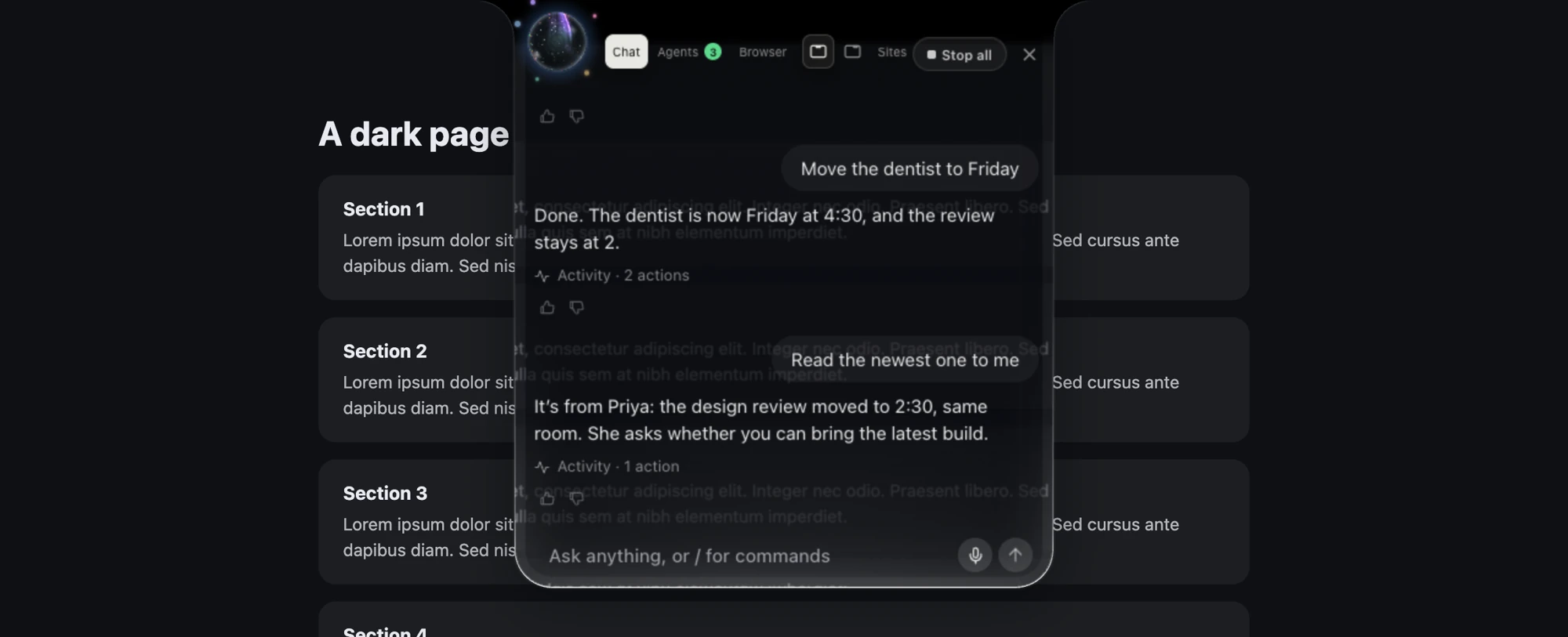
Your Nock conversation. Right here.
Chat shows the same conversation as Nock’s own notch, through the paired desktop app. Ask, hold the mic to talk, or read Nock’s replies and tool activity. An outside MCP agent’s own chat stays in its original app.
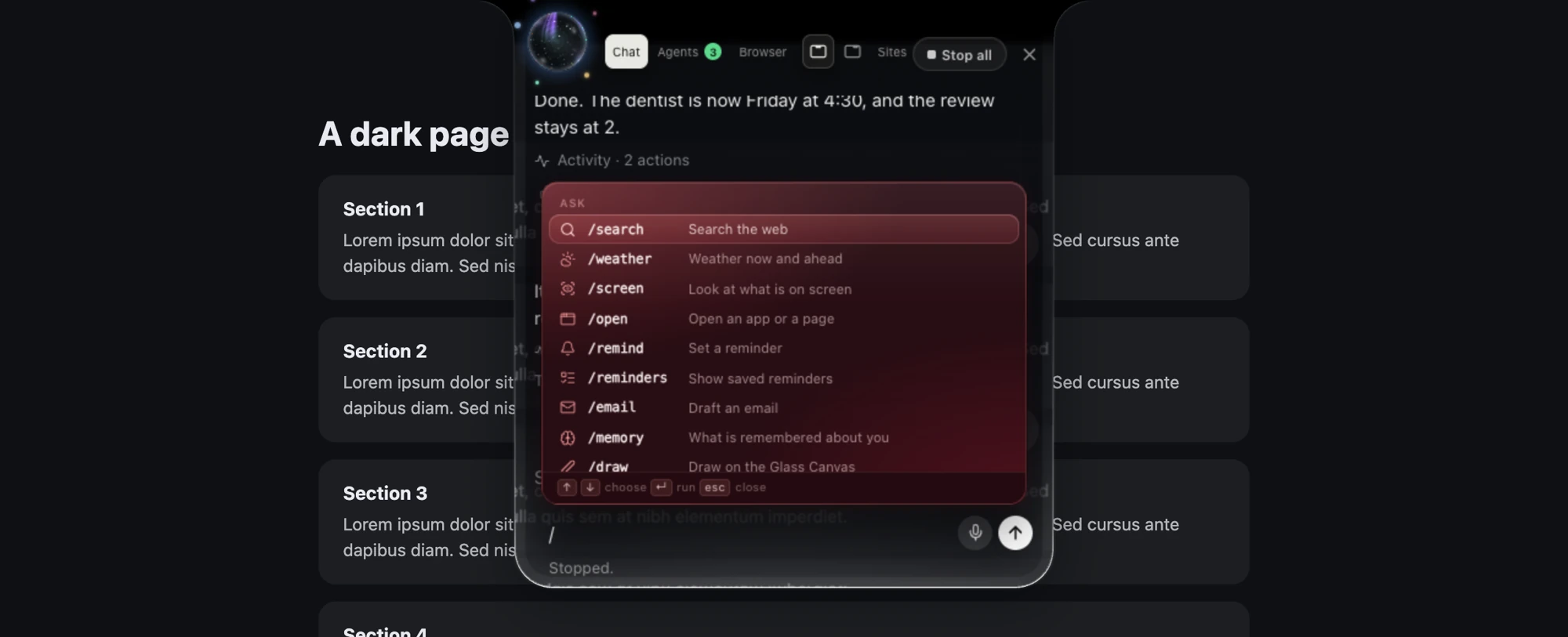
One slash. Your next move.
Type / to open Nock’s command list through the paired desktop app. Narrow it as you type, choose with the arrow keys and press Enter. Ask, Build and Chat commands are grouped over Nock’s conversation.
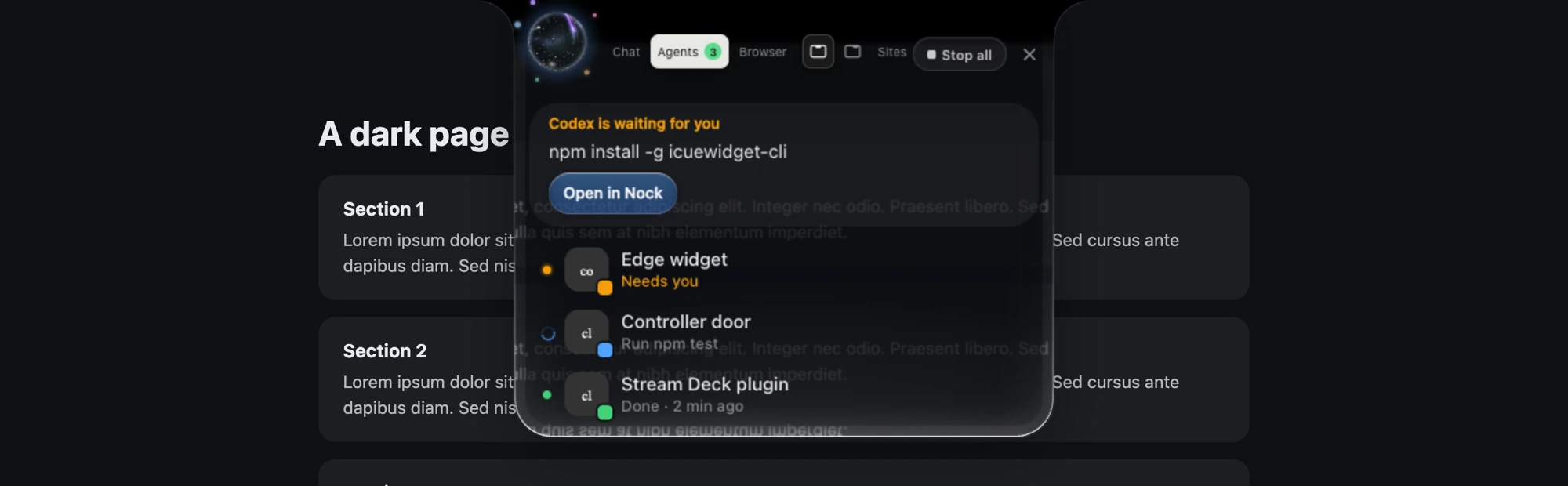
The chats Nock watches. In view.
Agents lists local chats and workers reported by the paired Nock desktop app. Open their steps, edits and commands, answer requests, or reply through Nock. Outside cloud connections appear in Browser controls, not in this list.
Product UI previews · sample conversations and staged data. Appearance and available providers depend on your setup.
PAIR WITH NOCK ON YOUR COMPUTER
Your real Chrome.
Your own logins.
Nock works in tabs you can watch, using the accounts you’re already signed into. Pair once with the Nock app on your computer, then share a tab or let Nock’s workers open their own.
See people and agents working in Team ↗- 01
One six-digit code.
In Nock, open Settings → Agent → Controllers → Pair a controller. In the extension’s Browser tab, choose Pair with Nock and enter the six-digit code shown by Nock.
- 02
Give it a tab to work in.
Share a tab from the toolbar, or let Nock open worker tabs in the “Nock · Workers” group. A visible border, agent badge, cursor and Stop control show when a tab is in use.
- 03
Keep your controls close.
Stop releases control and leaves your tabs open. Site blocks and the activity log live in the extension’s controls. The optional “Ask before send, buy or post” switch is off by default; turn it on to request confirmation before those actions.
OUTSIDE AGENTS / MCP BROWSER CONTROL
Their agent.
Your Chrome.
The MCP browser-control path is designed to work without the Nock desktop app once cloud connections are enabled. Give an MCP-compatible agent a named connection, choose its browsing or action permissions, and set a browser and expiry.
The agent’s own chat stays in its original app. Nock Browser shows its identity, browser activity, questions and connection controls. It does not bring that agent’s conversation into the Chat tab.
Want agents in a shared conversation? Explore Nock Team ↗- Know who is using Chrome.The cloud design identifies the connected agent with its name, a browser tab group and tab badges.
- Answer questions. Follow activity.The cloud design includes a question window and an activity log for browser work. The agent’s chat transcript stays in its own app.
- Stop releases tabs. Disconnect revokes access.Stop leaves the connection valid; a later request can open another tab. Disconnect ends that agent’s link.
External MCP access is not open yet. Browser sign-in is pending and the deployed cloud service is switched off.